So, picture this: you’re tossing a coin, right? You know how it goes—heads or tails, simple as that. Now, what if I told you there’s this cool thing called binomial distribution that’s like a fancy way of figuring out the odds of those coin flips? Yeah, it sounds nerdy, but hang tight.
Imagine trying to determine how many times you’ll get heads in ten flips. It’s not just guesswork; there’s some math magic behind it. And the best part? You can totally whip this up in Excel!
I remember when I first tackled this for my research project. I was knee-deep in numbers and spreadsheets, feeling like a total math whiz (or trying to). It felt like I found buried treasure when everything clicked into place.
So, let’s chat about how to use binomial distribution in Excel without losing our minds over formulas or massive data sets. You with me?
Applying Binomial Distribution in Excel: A Practical Guide for Scientific Research
So, let’s chat about binomial distribution. It’s this cool statistical method that can help you figure out the likelihood of a certain number of successes in a fixed number of trials, you know? Like, if you flip a coin ten times, how many times might it land on heads? Excel can actually make working with binomial distribution super easy. Let’s break it down!
What is Binomial Distribution?
Basically, binomial distribution is used when you have a fixed number of trials, two possible outcomes (like success or failure), and the probability of success remains constant across trials. Think about it like throwing darts: each throw is independent, and you could either hit the bullseye or miss.
Setting Up in Excel
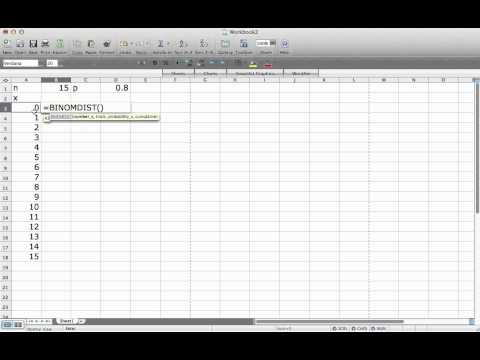
To use binomial distribution in Excel, you’ll want to rely on the BINOM.DIST function. Here’s how:
- Number_s: This is the number of successes you’re interested in. So, if you’re curious how many heads you’ll get in those 10 flips, this would be what you’re inputting.
- Trials: This refers to the total number of trials or experiments. In our dart example earlier, this would be 10.
- Probability_s: The probability of success on each trial. For flipping a fair coin, that’s 0.5 since there’s an equal chance for heads or tails.
- Cumulative: This optional argument takes TRUE or FALSE—you want TRUE if you’re looking to find the cumulative distribution (the sum up to your specific outcome).
So if we were calculating the probability of getting exactly 4 heads in 10 flips, it would look like this:
`=BINOM.DIST(4, 10, 0.5, FALSE)`
And voilà! You’ve got your probability.
Cumulative Distribution
If instead you’re looking for at least 4 successes (not just exactly), you’d set that cumulative argument to TRUE. So your formula changes a bit:
`=BINOM.DIST(4, 10, 0.5, TRUE)`
This tells Excel to give you all outcomes from zero successes up to four.
An Example from Science
Let’s say you’re studying a group of plants where each has a bunch of seeds and each seed has an equal chance of germinating—50%. If you plant ten seeds and want to know the likelihood that exactly six will sprout, you’d input that into your spreadsheet just as shared above! That insight could really help inform decisions on whether more seeds should be planted next time around.
Tips for Accuracy
You might feel tempted to tweak numbers and see what happens—that’s great for exploration! Just remember: Keep an eye on your probability; it should always fall between zero and one. Anything outside that range doesn’t make sense statistically!
A Final Word
Working with binomial distribution in Excel can really lend insight into research scenarios where those yes/no outcomes pop up frequently—like testing drugs or studying animal behavior patterns! Seriously though—it puts statistics into action! So grab those spreadsheet tools and start crunching some numbers; who knows what discoveries are waiting?
Applying Binomial Distribution in Excel for Scientific Research: A Comprehensive Guide
Alright, so let’s chat about using the **binomial distribution** in Excel for your scientific research. You might be wondering what that even is. Well, it’s a way to model situations with two possible outcomes. Think of flipping a coin—heads or tails, you know? It helps you calculate probabilities when you’re dealing with yes/no type scenarios.
First things first, if you’re going to use binomial distribution in Excel, you need to know how it works. The binomial distribution describes the number of successes in a fixed number of trials, given a constant probability of success on each trial. So, if you’ve got a research study where you’re testing a drug’s effectiveness—it can either work or not, right? That’s your binomial situation!
Now, here’s how you can apply it in Excel:
For example, let’s say you’re testing a new vaccine. If 50 people are tested (that’s your n), and historical data shows that 70% effectiveness (your p), then the chance of getting exactly 35 people who respond positively is what we want.
To do this in Excel, use the function:
=BINOM.DIST(k, n, p, FALSE).
What does that mean?
– k is how many successes you’re checking for.
– n is total trials.
– p is probability per trial.
– Last but not least, FALSE says that you want just the probability for exactly k successes.
So for our vaccine example:
=BINOM.DIST(35, 50, 0.7, FALSE) would give you that sweet probability.
If instead you were looking for “at least” 35 successes (which could really change things), you’d tweak it up with:
=1-BINOM.DIST(34,n,p,FALSE). This setup gives you all probabilities up to 34 and knocks them off from 1—like getting rid of bad apples so you’re only left with good ones.
Another cool thing: You can visualize this data! Creating charts based on your calculations can help anyone understand those probabilities better without all the math jargon.
And let me tell ya from experience—getting these visuals right can really sell your findings when presenting them! Remember that one time back at university when I had these killer graphs showing my experiment’s success rate? Everyone was impressed; made my pride swell like a balloon!
So yeah! Using binomial distribution in Excel isn’t just about crunching numbers; it’s about painting a clearer picture of what your research says—and possibly leading to more impactful decisions down the line! Just remember: get those key parameters right and you’ll be golden!
Analyzing Binomial Distribution in Excel: Calculating Probabilities Greater Than or Equal To
So, let’s chat about the binomial distribution and how you can use it in Excel to calculate probabilities. It might sound a bit technical, but hang on; we’ll break it down into bite-sized pieces.
First off, what is binomial distribution? Well, imagine you’re flipping a coin. Each flip gives you two possible outcomes: heads or tails. If you flip it multiple times, the binomial distribution helps you figure out the probabilities of getting a specific number of heads, given a fixed number of flips. Sounds like a game of chance, huh?
Now, when you’re doing research or just playing around with probabilities in Excel, calculating probabilities greater than or equal to a certain value is often what you’re after. This can totally help in decision-making processes.
Here’s how to do it step by step:
- Set Up Your Parameters: You need to know three things: the number of trials (n), probability of success on each trial (p), and the number of successes (k) you want to consider. For example, let’s say you flip that coin 10 times (n = 10) and want to find out the probability of getting at least 6 heads (that means k >= 6).
- Use BINOM.DIST Function: In Excel, there’s this super handy function called BINOM.DIST. It calculates the probability for a given number of successes. You’d plug in your values like this:
`=BINOM.DIST(k,n,p,FALSE)`. Here’s where k is your desired number of successes. - Cumulative Probability: Since you’re interested in >= k (like k being equal to or greater than), you’ll use cumulative distribution function by setting TRUE as the last argument:
`=BINOM.DIST(k-1,n,p,TRUE)`. This will give you the probability for fewer than k successes. - Finding Greater Than or Equal To: Now for at least k successes! You can find this by subtracting the cumulative probability from 1:
`1 – BINOM.DIST(k-1,n,p,TRUE)`. That will give you exactly what you’re looking for!
Let’s throw some numbers into this mix! If we have n = 10 trials and p = 0.5 for our coin flips (fair coin), and we want to find out the probability of getting at least 6 heads:
First calculate probability for k = 5:
`=BINOM.DIST(5,10,0.5,FALSE)` gets us results about exactly five heads.
Then calculate cumulative probability up to 5:
`=BINOM.DIST(5-1,10,0.5,TRUE)` gives us what we’d have below that.
Finally apply:
`1 – BINOM.DIST(5-1,10,0.5,TRUE)` so then we see how many times we’ll actually get six or more heads!
It might feel like you’re juggling numbers at first—totally understandable—but once you’ve got that formula down pat, it becomes second nature.
If all else fails—hey—Excel has some great online resources that can help clarify any stranglers you come across while plotting your data or digging deep into those numbers. Just remember: practice makes perfect!
You know, when it comes to scientific research, numbers can feel a bit overwhelming sometimes. But there’s this nifty tool called the binomial distribution that can actually help us make sense of it all. I remember my first time using Excel for analyzing research data; it was a mix of excitement and confusion. It felt like I was standing at the edge of a diving board, ready to jump into the data pool but unsure of the depth.
So here’s the deal: binomial distribution is all about those yes-or-no questions. Like, if you flip a coin, you either get heads or tails, right? In research, you might want to know how likely it is that something will happen a certain number of times within a fixed number of trials. That’s where this distribution shines. It tells you the probabilities of various outcomes based on success or failure—like determining how many times students pass an exam if you know their average pass rate.
Now, Excel has this great function called BINOM.DIST that makes all this math easier than it sounds. You just plug in your values like number of trials and success chance per trial—and boom! You get your probabilities instantly. I remember feeling like I’d just discovered fire for the first time when I realized how much faster my analysis could be with a few clicks instead of pencil and paper.
It’s not just about convenience though; using tools like this also helps researchers avoid mistakes that can come from tedious calculations. Picture yourself wrestling with spreadsheets late into the night—your eyes glazing over as you lose track of what number goes where. Sounds fun? Not so much! By using Excel and understanding binomial distribution, researchers can focus more on interpretation rather than getting lost in numbers.
But here’s something to think about: while these tools are super helpful, they shouldn’t replace critical thinking. You still need to ask questions about what those probabilities mean in real life and what assumptions you’re making along the way. Like my old professor used to say, “Numbers don’t speak—they need context.” So while Excel can help calculate probabilities efficiently, your job as a researcher is to interpret those numbers wisely.
All in all, utilizing binomial distribution in Excel isn’t just for tech-savvy folks; it’s for anyone trying to grasp their data better. So next time you’re grappling with some research statistics or diving into probabilities, remember: it’s about making connections between those numbers and real-world implications—and having fun along the way!